- 1. How a main business number connects to your team
- 2. Choose how to answer: apps, mobile forwarding or multiple devices
- 3. Keep your existing PBX or consider Cloud PBX
- 4. Decide who should answer - not just which phone should ring
- 5. Business hours, holidays and no-answer routing
- 6. Three example designs for different teams
- 7. After answering: transfers, callbacks and follow-up
- 8. Check connectivity and devices where people actually work
- 9. Manage accounts, privacy and working hours
- 10. Readiness checklist and pre-launch testing
- 11. Frequently asked questions
- 12. Plan your main-number call flow with SIPPER
Need a Main Business Number When Your Team Isn’t Always at a Desk?
Plan a main business number for teams away from their desks. Compare mobile apps, call forwarding and queues, with practical setup and testing checks.
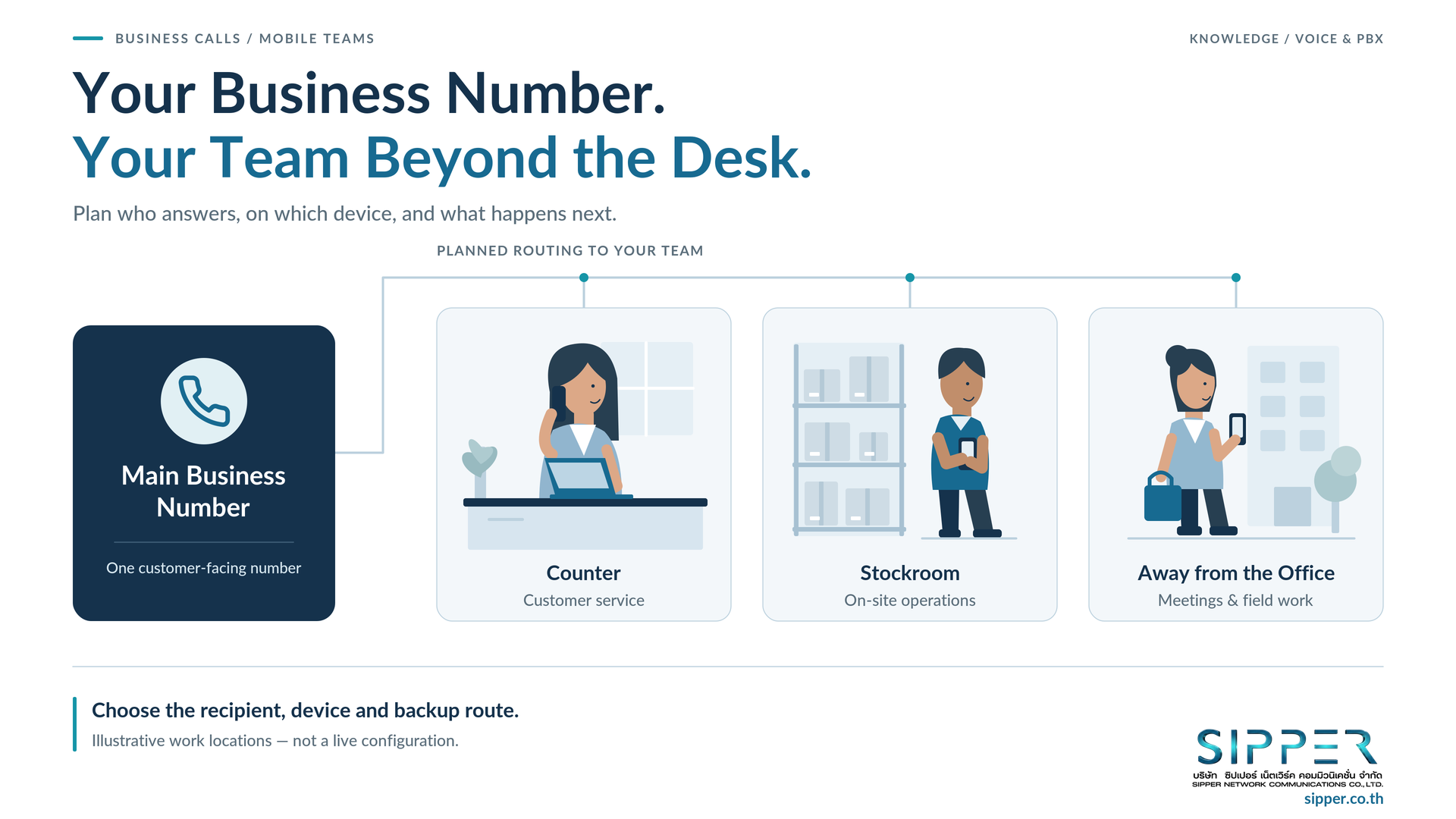
Picture a customer calling your business while the person who can help is checking stock in the warehouse or visiting another customer (a hypothetical scenario). The real question isn't just “Can staff answer on a mobile?” It's who should get the call, on which device, and what happens if they can't answer?
Your team doesn't need to sit at desks for customers to reach your main business number. What you need is a phone system and connections that actually work, devices that are ready, and someone free to talk. So start by deciding who answers, how they connect and where calls go when nobody picks up - not just by installing another app.
1. How a main business number connects to your team
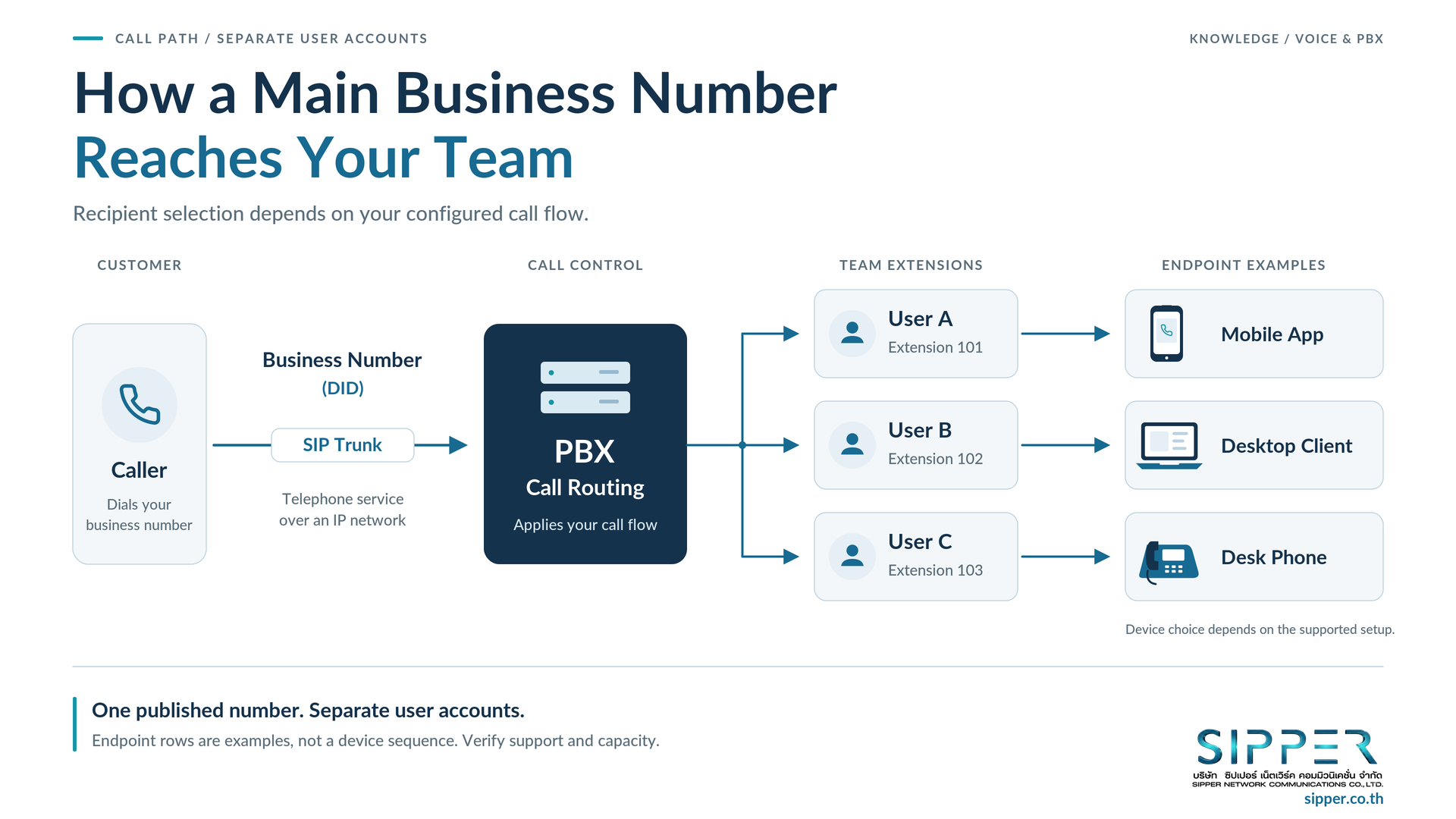
Your main business number is the number customers use to contact the company. A DID (Direct Inward Dialing) number delivers incoming calls into the phone system; it need not be an employee’s SIM number. A SIP Trunk (Session Initiation Protocol Trunk) connects a compatible phone system to the telephone service provider over an IP network. See SIP Trunk fundamentals.
A PBX (Private Branch Exchange) manages extensions and calls. Cloud PBX hosts that system on cloud infrastructure rather than your office equipment; it is not another name for a SIP Trunk. See Cloud PBX fundamentals.
An extension identifies an internal destination or user account. A softphone/mobile client is software used as a phone. Call routing determines where calls go; a ring group calls selected members, while a call queue manages waiting callers and agent distribution. Manufacturer examples appear in ring-group and queue documentation.
Don't mix up four different quantities: numbers, users, devices and simultaneous calls. One number doesn't mean only one call - or unlimited calls. Check PBX capacity and trunk limits separately. Give each person their own account where the system supports it; sharing a main number is no reason to share passwords.
Customers simply call your business number as usual - they don't need the same app as your staff. That's different from app-to-app calling.
2. Choose how to answer: apps, mobile forwarding or multiple devices
Use this table to compare the options; it isn't a list of features included in every package.
| Option | Call path | What you need | Features to verify | Costs and limitations |
|---|---|---|---|---|
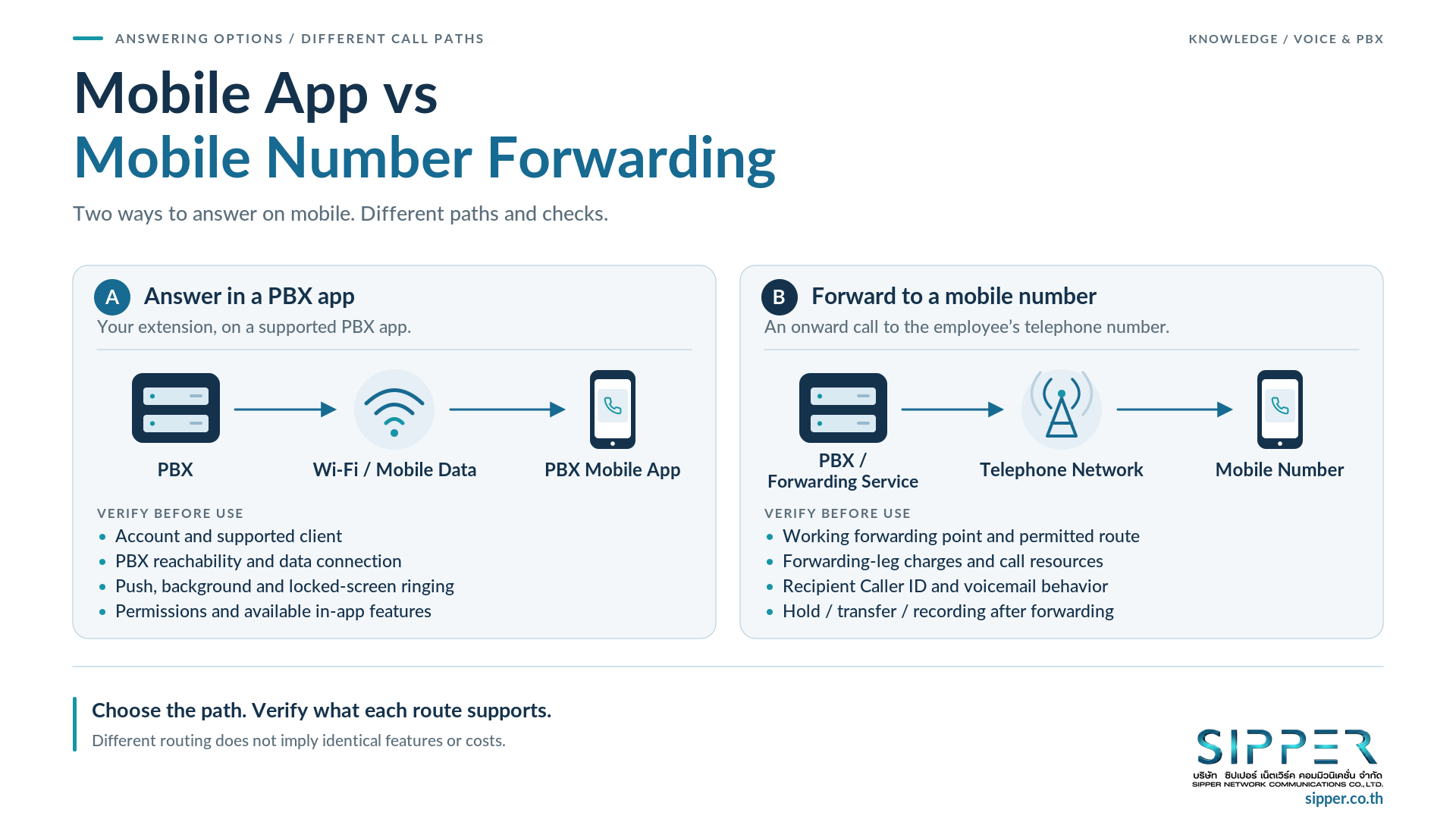
| PBX-connected app | Business number → PBX → extension → app | Supported account/client, PBX reachability, Wi-Fi or mobile data | Notifications, background operation, transfer, queue participation | Client/service entitlement, data use, device compatibility |
| Forward to a mobile number | Business number → forwarding system → telephone service → mobile number | Operational forwarding point and permitted outbound route | Recipient Caller ID, confirmation, voicemail interaction, post-forward features | Forwarding-leg charges and concurrent-call resources |
| One user, several devices | PBX → eligible endpoints for one extension | Supported desk phone and clients, suitable license | Ring order and differences between direct, group and queue calls | Endpoint limits; no universal promise of uninterrupted device switching |
Answer through a PBX-connected app
The employee uses their extension on a mobile or computer. Yeastar Linkus Mobile is one example for compatible Yeastar systems; the manufacturer says its features depend on the connected PBX series. Downloading the app alone doesn't give you a business number, and it won't work with every PBX straight away.
Before going live, check on the actual device: account permissions, remote access, push notifications, background operation, answering on a locked screen, battery optimization, microphone access and queue availability.
Forward to the employee’s mobile number
With forwarding, the call reaches the mobile number over the telephone network rather than through the PBX app's data connection. So check forwarding charges, outbound permissions, Caller ID and resource usage, and don't assume every platform uses the same number of channels. Hold, transfer and recording may also behave differently once the call leaves the PBX.
Another thing to test is the mobile's own voicemail picking up before a person does. Where supported, Call Confirmation asks the recipient to accept the forwarded call. For Yeastar P-Series Cloud Edition, the documented option requires firmware 84.24.0.73 or later and a Mobile Number or External Number destination. The guide excludes specified SIP 302 forwarding and forwarding performed directly by an IP phone. These are manufacturer requirements, not confirmation of SIPPER’s deployed firmware.
Use several devices for one person
One person's desk phone, desktop client and mobile client are a different matter from spreading calls across several people. Test how each device behaves for each incoming call path, and don't promise that switching devices or moving from Wi-Fi to 4G/5G mid-call will always be seamless.
3. Keep your existing PBX or consider Cloud PBX
Start by reviewing the existing system: model, location, administrator, remote-client options, security controls and licensing. Some installations may be adapted without replacing everything. A legacy-PBX assessment can help frame that decision.
Cloud PBX is another option when its operating model fits your needs. SIPPER’s Cloud PBX page identifies Yeastar P-Series and Linkus UC Client, but a product capability doesn't mean every customer's service already has it enabled. Confirm Edition, firmware, app/OS versions, license and agreed package before promising a feature.
If you only need to forward to one destination, look at a simpler provider-supported service first. Also confirm number eligibility, service area, required documents and whether an existing number can be retained or ported. SIPPER describes DID and porting services; the reviewed sources do not confirm a particular number’s eligibility, forwarding tariffs or actual deployed versions. And having voice service doesn't mean the number can receive SMS/OTP.
4. Decide who should answer - not just which phone should ring
Ring All and Sequential Ring
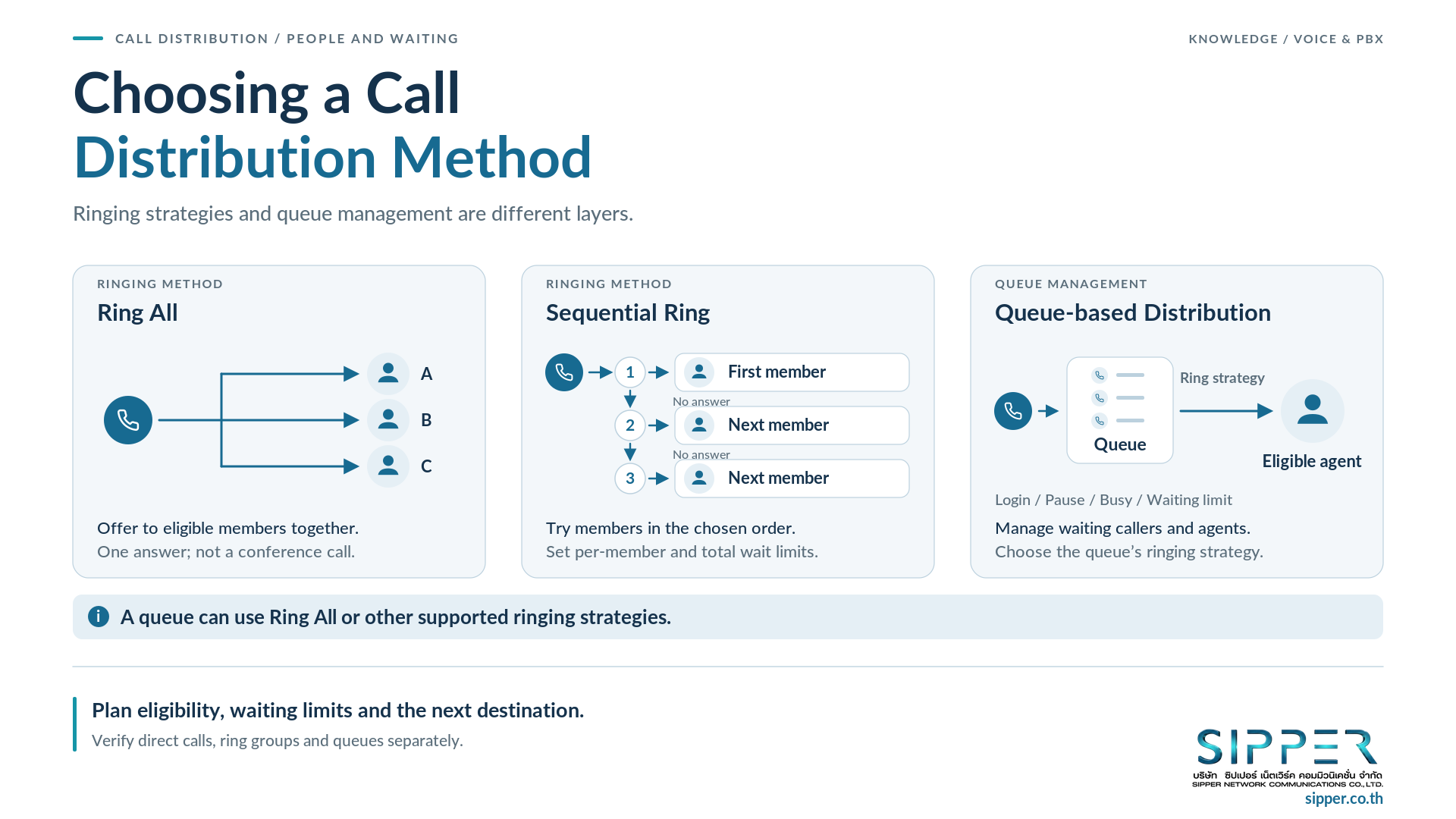
Ring All offers the call to eligible members together; it is not a conference with everyone. Test that the other devices stop ringing once someone answers. Sequential Ring tries members in order. Set both a per-person and an overall waiting limit - a long list can leave customers waiting too long. Yeastar documents both methods for P-Series Cloud ring groups.
Queue-based distribution
A queue manages waiting callers and agents; it can itself use different ringing strategies, including Ring All. So “Ring All or Queue” isn't always an either/or choice. Check agent login/logout, pause, busy behavior and maximum waiting time against the queue configuration.
Presence doesn't always mean ready to talk
Keep four things apart: the app being online, the device being registered, the agent meeting the receiving conditions, and the person actually being free to talk. Check Presence and DND (Do Not Disturb) alongside group and queue rules.
In the P-Series Cloud presence documentation, the extension’s endpoint ring order does not apply to ring-group/queue calls; registered endpoints ring together instead. A successful direct-call test therefore doesn't confirm how queue calls behave, and forwarding and DND effects need their own checks.
Use IVR (Interactive Voice Response) menus only when choosing a department genuinely helps callers reach the right team; not every business needs several menu layers.
5. Business hours, holidays and no-answer routing
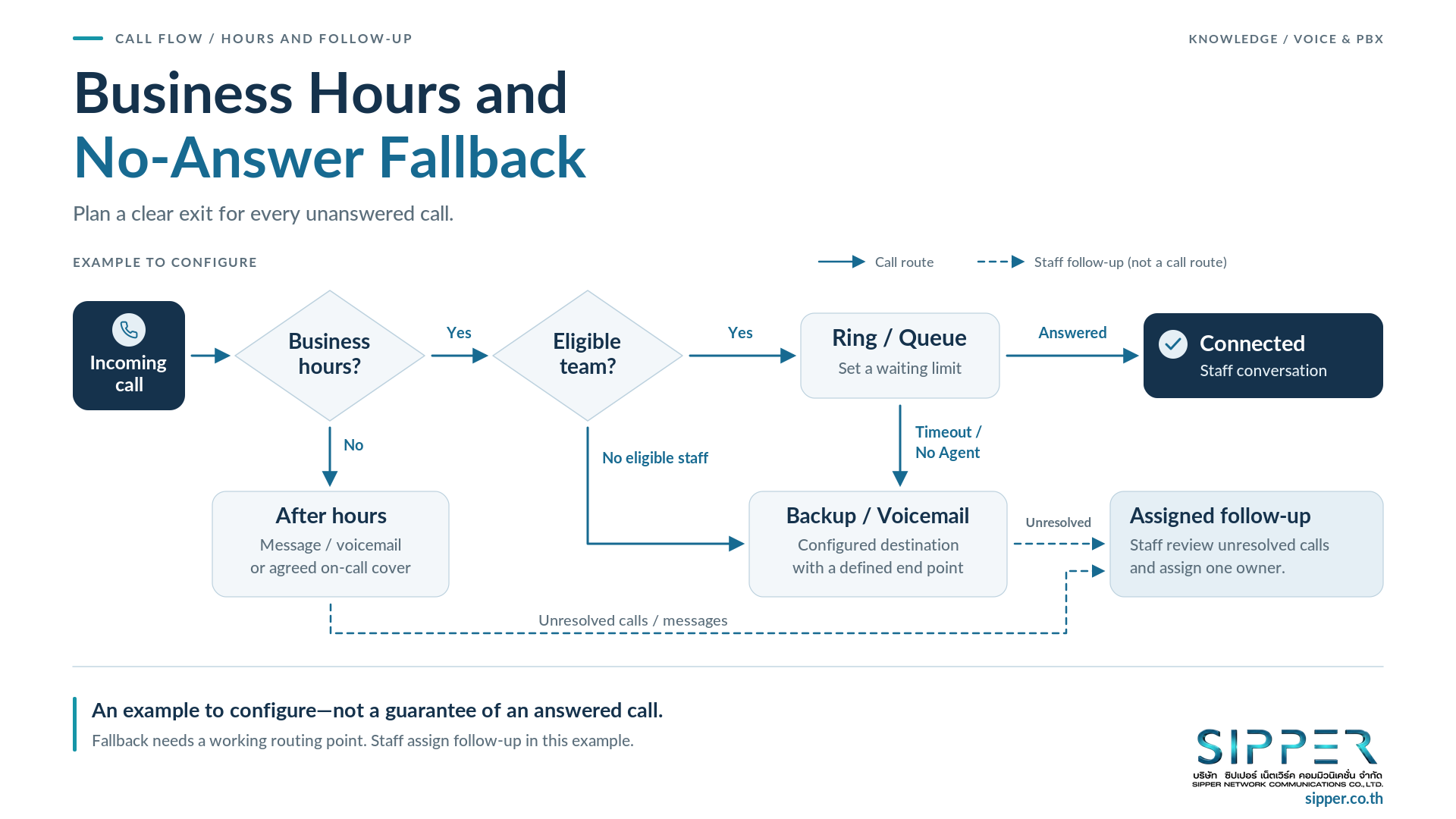
Document business hours, holidays, on-call coverage and time zones. Then map a path that always has an end point. This is a proposed design, not a default configuration:
Business hours? → Eligible team? → Ring or queue → Answered, timeout or no agent → Backup team or voicemail → Assigned follow-up.
“Everyone is busy” may justify a limited wait. “No agent meets the receiving conditions” may need an immediate alternative. Define each case separately, including when the caller abandons the wait. Outside hours, use the agreed message or on-call cover - don't just hope someone will pick up.
Specify where fallback runs. If an office-hosted PBX becomes unreachable, the rules inside it can't handle calls that never reach it. Provider-side or otherwise independent fallback needs separate verification and agreement. And being in the cloud doesn't mean nothing can fail.
In this example, a designated employee reviews unanswered calls and voicemail, then assigns follow-up manually. Automatic task creation would require a separately configured and tested workflow. Don't let calls loop endlessly between queues.
6. Three example designs for different teams
The following are hypothetical designs, not SIPPER customer case studies.
A small team sharing customer service
A showroom team rotates between the counter and stockroom. Use a small ring group aligned with the duty roster. After the agreed timeout, route to a backup or voicemail. The shift lead reviews unanswered calls, so nobody has to assume a colleague already called back.
Salespeople or field technicians
Use mobile clients when staff have suitable connectivity and are available. During customer work, driving or unsafe tasks, mark staff unavailable and route to an office coordinator. When it's safe, the technician returns the call through the approved business-calling path - not straight from a personal dialer.
Several departments or branches
Use a short department menu where useful, then route to the responsible team or queue. Document each team’s hours and backup coverage, including home-working days. If a call goes to another branch, responsibility for follow-up should go with it - not just the ringing phone.
7. After answering: transfers, callbacks and follow-up
Transfer with a clear handover
Where supported, an attended transfer lets the first employee speak to a colleague before completing the handover. Yeastar describes this transfer pattern; verify controls on the actual client/version. Agree what happens if the colleague can't help, and practice going back to the caller on hold rather than transferring them blindly into another wait.
Call back through the right route
To present an authorized company number, use a supported outbound path through the business system and the provider’s permitted Caller ID configuration. Yeastar explicitly makes custom outbound Caller ID dependent on trunk-provider support.
The customer number displayed on an incoming call is different from the company number presented on a callback. A forwarded incoming call does not change the identity of an ordinary outgoing SIM call. So don't assume every calling path hides personal numbers automatically.
Track the customer interaction, not every ringing device
A call one employee missed may already have been answered by a colleague - check before assigning a callback. Equally, a greeting or IVR picking up doesn't mean anyone actually spoke to the customer.
Assign one owner and a follow-up status to each unresolved interaction. Call history on its own isn't a complete customer-service process. Yeastar’s CRM integration overview describes capabilities such as contact/call-record synchronization; task assignment and duplicate prevention still require the chosen integration or an agreed manual process.
8. Check connectivity and devices where people actually work
Test in the stockroom, showroom, at home and wherever else staff usually work - not just with a speed test at a desk. Listen for broken or one-way audio and excessive delay. For background, see Fast Internet but Choppy Phone Calls?.
Include Wi-Fi and mobile data, weak-signal areas, locked screens, background notifications, battery-saving behavior, microphone permissions and the chosen headset. Record the app, operating-system and PBX versions used. Seeing a 4G/5G icon on screen doesn't count as passing.
Prepare alternatives for a flat battery, no signal, another call in progress, nobody available, office-network failure and PBX failure. Check what each fallback depends on rather than assuming one alternative covers everything.
9. Manage accounts, privacy and working hours
Use separate business accounts and permissions appropriate to each role. Don't share administrator credentials or SIP secrets across the team. Restrict outbound destinations and access to call records; enable MFA (Multi-Factor Authentication) on supported sign-in channels without assuming it protects every SIP registration method.
Define a lost-device and departure process: revoke relevant access and sessions, change exposed credentials, remove group/queue membership, and remove forwarding to a former employee’s personal number. For personal devices, agree how company information is handled and removed without authorizing indiscriminate deletion of personal data.
Being able to answer on a mobile doesn't mean being available 24 hours a day. Maintain work schedules, leave coverage and on-call assignments. When recording or transcription is needed, establish purpose, permissions, appropriate notice, retention and access controls. Having a feature in the phone system doesn't mean a legal compliance review has been done.
10. Readiness checklist and pre-launch testing
Prepare for the discussion
You don't need every technical setting before contacting SIPPER. Answering these questions about how you work is a good start.
| Area | Information to bring |
|---|---|
| Numbers and existing system | New or existing number? Where is the PBX, and who manages it? |
| People and devices | How many people, teams and branches? Company or personal devices? |
| Work locations and capacity | Which networks and work areas? Approximately how many simultaneous calls? |
| Receiving and returning calls | One forwarding destination, ring group or queue? Must callbacks show the business number? |
| Coverage and ownership | Business hours, holidays and no-answer destination? Who owns missed-call follow-up? |
| Records and integration | What must be recorded? Is CRM/helpdesk integration needed? |
Pilot before wider rollout
Agree a flow, assign users and permissions, pilot with one team, inspect results and expand only after acceptance. Use the following planned tests, with an owner and pass/fail result for each; this article does not report live testing.
| Test | What to verify |
|---|---|
| External inbound calls | Correct number, route and intended recipient |
| App foreground, background and locked screen | Notification, ringing and two-way audio on each supported setup |
| Available, unavailable, busy and multiple endpoints | Correct eligibility; remaining devices stop after an answer |
| Queue empty or maximum wait reached | Expected backup, message or exit without looping |
| Forwarding and mobile voicemail | Correct destination, confirmation where used, recipient Caller ID and resource/charge treatment |
| Hold, transfer and callback | Audio continuity, recoverable handover and permitted outbound Caller ID |
| Holidays, after hours and failures | Correct schedule and fallback that remains operational |
| Records and follow-up | Human answer distinguished from system greeting; one owner and no duplicate callback tasks |
11. Frequently asked questions
1) Do customers need to install an app?
No. Customers call your business number as usual; how staff receive the call is a separate part of the system.
2) Can several employees answer calls to one number?
Yes, with suitable routing and capacity. Staff should use the account structure the system supports. One published number does not mean unlimited simultaneous calls.
3) How is an app different from mobile forwarding?
An app connects through a data path to the PBX. Forwarding sends a telephone call to a mobile number. Costs, Caller ID and available features need separate checks.
4) Can the system work without desk phones?
Yes, where supported clients, accounts, connectivity and suitable audio equipment meet the requirement. Test the actual app and device combination rather than assuming every model works.
5) Must the existing PBX be replaced?
Not necessarily. Assess its remote-client and routing capabilities first; compare adaptation with Cloud PBX or simpler forwarding.
6) Which number appears on callbacks?
That depends on the outbound path and permitted Caller ID. Calling through the business system is different from using the phone’s ordinary SIM dialer; see Caller ID requirements.
7) What if everyone is busy or has no internet?
Use the tested waiting limit and fallback. A telephone-forwarding alternative still needs a working forwarding point and reachable destination; it does not solve every failure.
8) What happens after hours or when someone leaves?
Apply the agreed schedule and on-call coverage. When someone leaves, revoke access, update team membership and remove personal-number forwarding; reassign outstanding follow-up.
12. Plan your main-number call flow with SIPPER
Start with assess the work → choose how to answer → assign users and permissions → configure routing → pilot → review → expand.
SIPPER provides SIP Trunk and Thai DID services. Your team defines responsibilities, work schedules and acceptable outcomes. The SIPPER team helps assess connectivity and suitable options, coordinate configuration and plan testing within the agreed scope, while the system administrator manages access and agreed day-to-day changes. One person may hold several roles, but who owns what should stay clear.
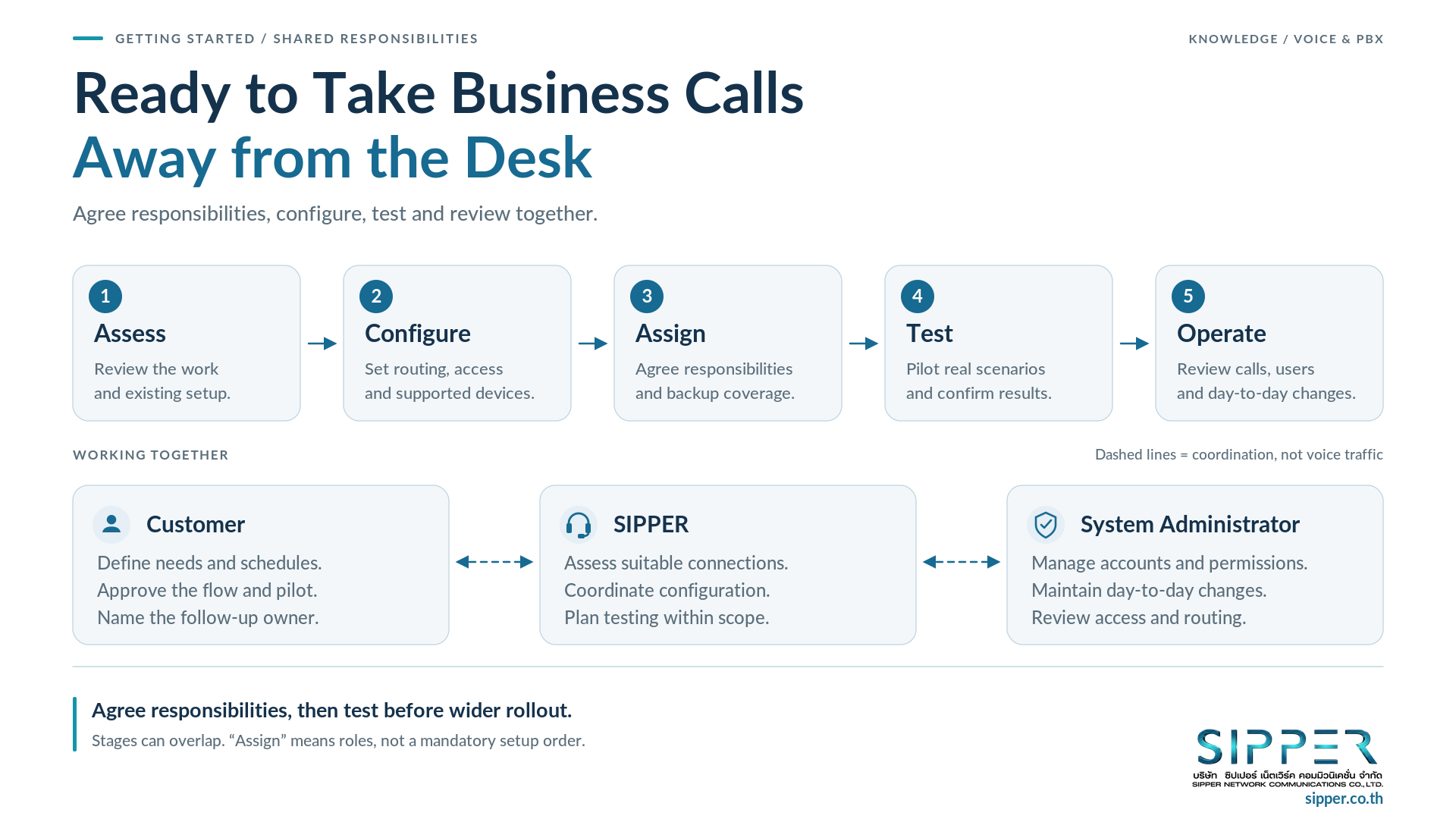
You don't have to design or configure every connection yourself. The SIPPER team works with you and your administrator - from reviewing the existing setup to preparing a suitable call flow - within the agreed service scope.
Your team doesn't need to share a desk to get a phone setup that fits how they work. Tell us how many people answer calls, what phone system you use today and your business hours, and we'll help assess the options and agree on test conditions together.
Ready to deploy?
SIPPER designs, deploys, and maintains end-to-end enterprise phone systems. Start with a free quote.